Ollama on Intel Celeron, Part II: Setting Up Your Own AI Server (Yes, Really)
Self-Hosting Local AI on a Celeron N4100 Laptop: A Step-by-Step Guide (Yes, Really)
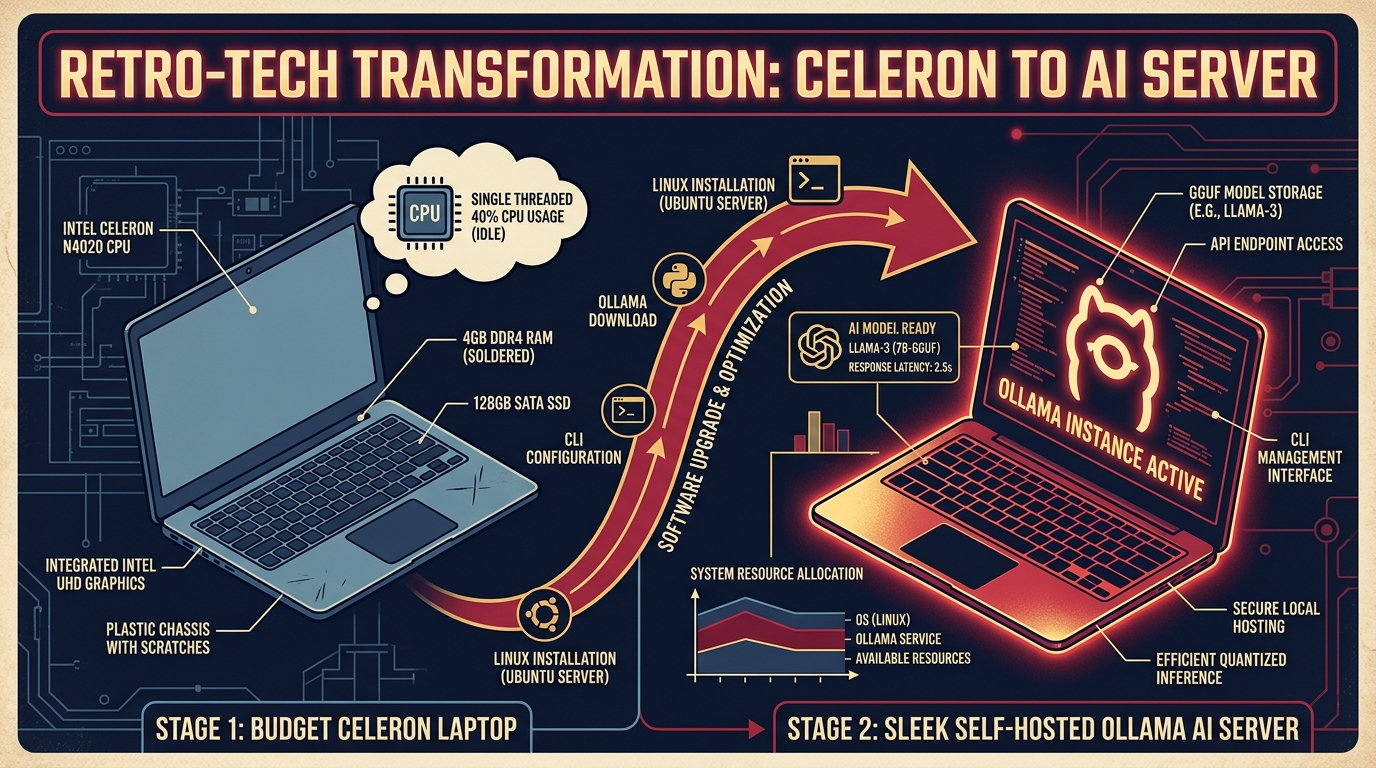
The premise: you've got a spare budget laptop gathering dust in a drawer — an Intel Celeron N4100 with 8 GB of RAM. You want to turn it into a private, self-hosted AI server using Ollama.
Is it ridiculous? Absolutely. Is it an affront to NVIDIA's multi-billion-dollar GPU empire? Definitely. Does it actually work? Surprisingly, yes.
In Part I, I explained why this hardware struggles and how a lightweight RAG trick got prompt delays down from 120 seconds to under 1. This time, we're rolling up our sleeves: here's exactly how to take an underpowered, 6-Watt Celeron laptop (bw-n4100) and turn it into a fully functional, headless Ollama server.
Meet the "Beast"
Before we type a single terminal command, let's take a moment to admire what we're working with:
- CPU: Intel Celeron N4100 — 4 cores, 4 threads, 1.10 GHz base / 2.40 GHz "burst of tears"
- GPU: Integrated Intel UHD Graphics 600 — 0 MB dedicated VRAM, pure deadweight for this job
- RAM: 8 GB DDR4, single-channel (our one oasis in this desert)
- TDP: 6 Watts — uses less power than a standard LED light bulb
- Missing feature: AVX2 SIMD instructions, the secret sauce modern LLM engines rely on for fast matrix math
Running AI on this thing is a bit like asking a toaster to calculate orbital trajectories. But with the right models and a little systemd know-how, it actually gets the job done.
Step 1: Install Ollama
Ollama makes this part painless. Open a terminal on your Celeron laptop and run the official installer:
curl -fsSL https://ollama.com/install.sh | shThis script downloads the Linux binary, creates a dedicated ollama service user, and registers Ollama with systemd — no manual setup needed.
Confirm it installed correctly:
ollama --versionStep 2: Let systemd Do the Babysitting
Since this laptop is going to live as a headless server, you want Ollama running quietly in the background — no terminal window required, and no you-forgot-to-restart-it surprises.
Check that the service is alive:
sudo systemctl status ollamaYou're looking for an active (running) status.
If you ever need to restart or stop it:
sudo systemctl restart ollama
sudo systemctl stop ollama
Step 3: Let It Talk to the Rest of Your Network
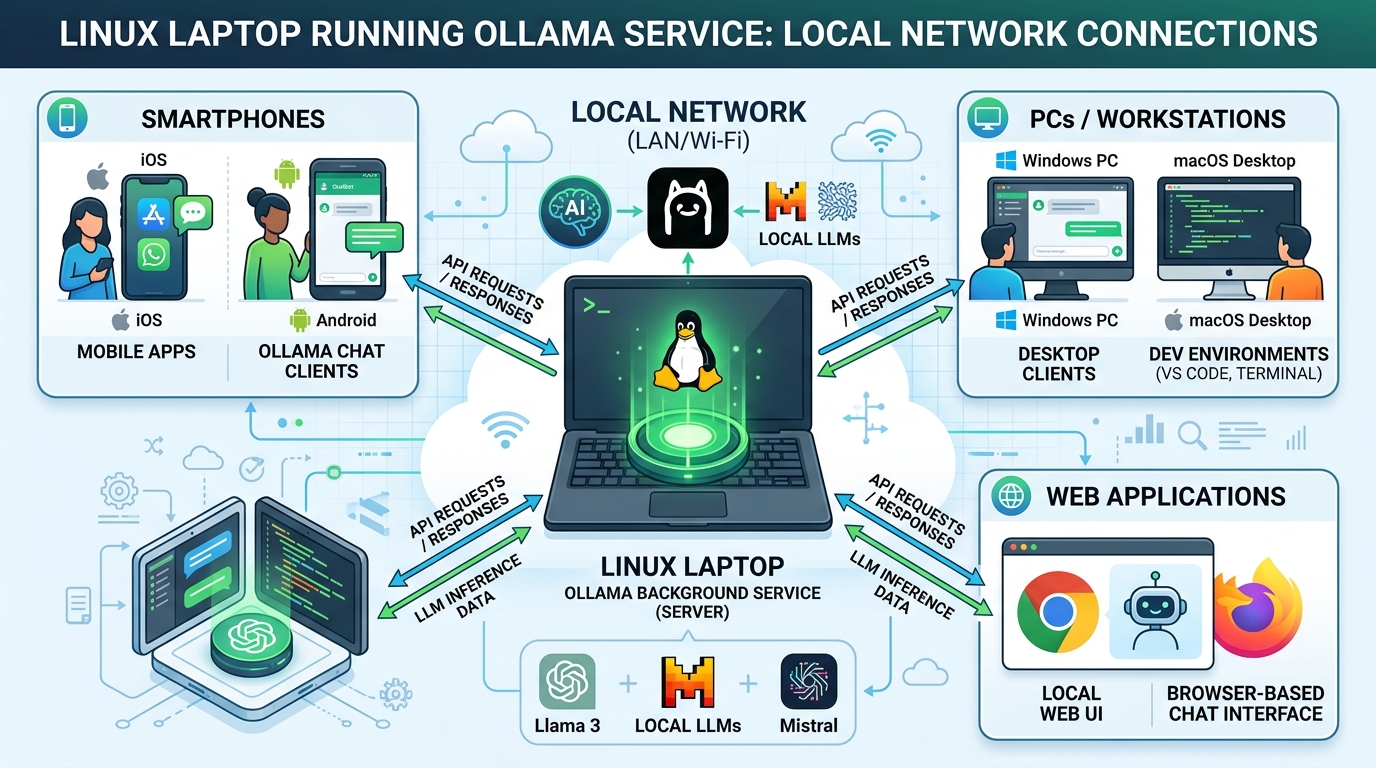
By default, Ollama only listens on 127.0.0.1:11434 — meaning only the laptop itself can talk to it. To query this server from your main PC, your phone, or a web app elsewhere on your Wi-Fi or Tailscale network, you need to open up its binding address.
- Edit the service configuration:
sudo systemctl edit ollama.service- Add this under the
[Service]block:
[Service]
Environment="OLLAMA_HOST=0.0.0.0:11434"- Save, exit, and reload
systemd:
sudo systemctl daemon-reload
sudo systemctl restart ollama
Congratulations — your Celeron laptop is now officially broadcasting its own AI endpoint across your home network.
Step 4: Pick Models That Won't Melt Your 6-Watt CPU
Try loading a 70-billion-parameter model on this thing and it will melt before producing a single word — figuratively (mostly). To keep things usable, stick to small, quantized models under 2 billion parameters.
Models that actually work on a Celeron N4100 + 8 GB RAM:
| Model | Command | RAM Footprint | Expected Speed | Best For |
|---|---|---|---|---|
| Qwen 2.5 0.5B | ollama pull qwen2.5:0.5b |
~350 MB | 3.5–4.0 tokens/sec | RAG, quick Q&A, simple search |
| Qwen 2.5 1.5B | ollama pull qwen2.5:1.5b |
~1.1 GB | 1.8–2.2 tokens/sec | Code generation, reasoning at a leisurely pace |
| Llama 3.2 1B | ollama pull llama3.2:1b |
~800 MB | 2.5–3.0 tokens/sec | Conversational chat, patience required |
Pull your first model:
ollama pull qwen2.5:0.5bTake it for a spin:
ollama run qwen2.5:0.5b "Hello! Confirm you are running on a 6-Watt Celeron laptop."Step 5: Tune It for Speed
The defaults work, but a few tweaks make a real difference on hardware this constrained.
Tune Ollama's own settings
sudo systemctl edit ollama.service[Service]
Environment="OLLAMA_HOST=0.0.0.0:11434"
Environment="OLLAMA_ORIGINS=*"
Environment="OLLAMA_NUM_THREADS=4"
Environment="OLLAMA_MAX_LOADED_MODELS=2"
Environment="OLLAMA_KEEP_ALIVE=-1"That last line matters most: OLLAMA_KEEP_ALIVE=-1 disables the default 5-minute idle timeout, so your model stays loaded in RAM instead of unloading — and forcing a slow reload — every time it sits idle for a few minutes.
Apply the changes:
sudo systemctl daemon-reload
sudo systemctl restart ollama
Build a leaner, faster model variant
Rather than running Qwen with its defaults, create a trimmed-down version tuned for short, fast responses:
cat << 'EOF' > Modelfile.qwen
FROM qwen2.5:0.5b
PARAMETER num_ctx 1024
PARAMETER num_predict 128
PARAMETER num_keep 24
PARAMETER temperature 0.5
EOF

ollama create qwen2.5-fast -f Modelfile.qwen

# Clean up
rm Modelfile.qwen
This caps the context window and output length, which keeps every request small and fast — exactly what this CPU wants.
Pre-load the model so the first request isn't slow
Ollama normally loads a model into RAM on its first request, which means whoever asks the first question eats a slow load time. Skip that by warming it up yourself right after a restart:
curl -s http://127.0.0.1:11434/api/generate -d '{"model": "qwen2.5-fast:latest", "keep_alive": -1}' > /dev/nullThis sends a blank request that forces the model into memory immediately, so it's ready and waiting before anyone else asks it anything.
Step 6: Test the API and Watch the "Jet Engine" Spin Up
Your Celeron server now exposes an OpenAI-compatible REST API that any device on your network can hit.
Send a test request:
curl http://<your-laptop-ip>:11434/v1/chat/completions \
  -H "Content-Type: application/json" \
  -d '{
    "model": "qwen2.5-fast:latest",
    "messages": [
      {"role": "user", "content": "Explain what a CPU cache is in two short sentences."}
    ],
    "stream": false
  }'
Watch it work in real time:
journalctl -u ollama -fKeep an eye out for these two lines — they tell you exactly how your little laptop is holding up:
prompt eval time = 230.65 ms / 1 tokens     (delay before it starts generating)
eval time        = 40079.61 ms / 144 tokens (generation speed: ~3.59 tokens/sec)
The Verdict: Ridiculous? Yes. Does It Work? Absolutely.
Running an AI server on a Celeron N4100 laptop with 8 GB of RAM sounds like a punchline. But paired with 0.5B models, prefix caching, and a lightweight RAG pipeline (see Part I), this roughly $50–100 setup delivers sub-second start times and a genuinely usable 3.5+ tokens/second — all while sipping less power than a desk lamp.
You don't need a $2,000 GPU to start experimenting with self-hosted AI. Sometimes all it takes is a laptop that was headed for a drawer, and a little stubbornness.
- Part I: From 120 Seconds to Under 1 Second
- Part II: Setting Up Your Own AI Server (You are here)
- Part III: Building an AI Chatbot for Grav CMS